Most questions about a push notification account are simple to ask and tedious to answer. How many subscribers did we add this week? Which campaign had the best click rate last month? Who are our subscribers in California, and can we send them something? Each one is a few minutes of clicking through reports, filters and forms. None of it is hard. All of it adds up.
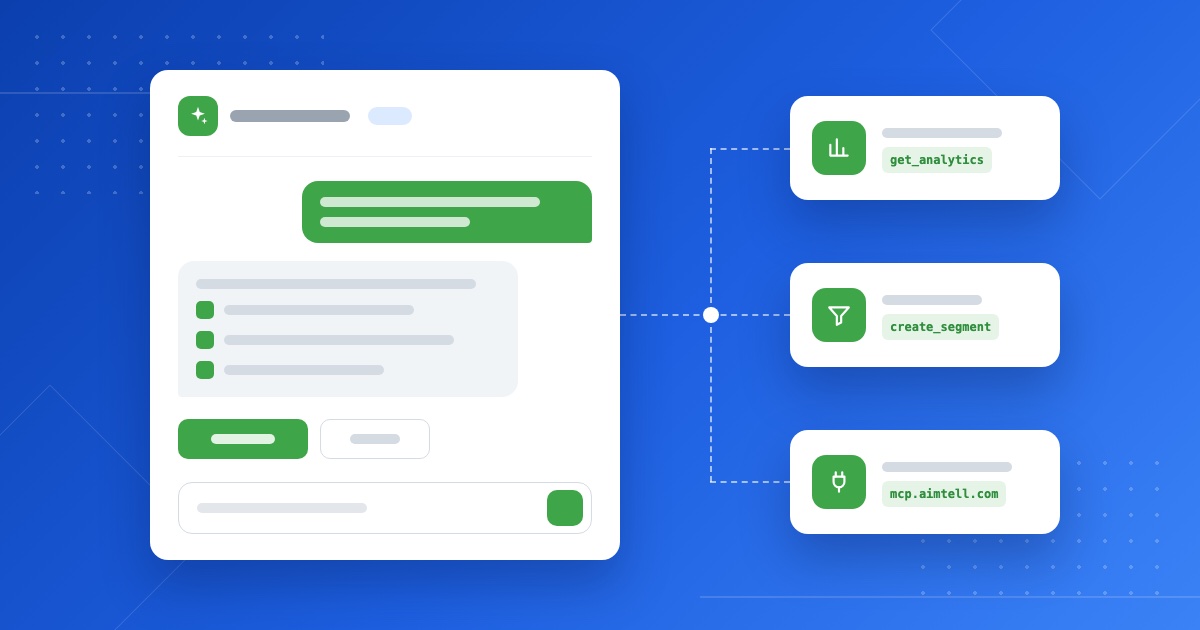
Today we are opening two ways to hand that work to AI, both available now in open beta. The first is the Aimtell AI Assistant, which lives in your dashboard and answers questions about your account in plain English. The second is the Aimtell MCP server, which connects your Aimtell account to Claude, Cursor and other AI tools that support the Model Context Protocol. Both run on the same set of tools, and both follow the same rule: nothing sends until you say so.
Here is what each one does, how to start using it, and how we made sure it cannot surprise your subscribers. If you would rather jump straight to the setup steps, our help center has a guide to using the AI Assistant and another to connecting the MCP server.
Ask Your Dashboard a Question
Look at the top of your Aimtell dashboard and you will see a new sparkles button beside the notification bell. Click it and the assistant opens in a panel on the right. Type a question the way you would ask a colleague, and it reads your live account data to answer it.

A few of the questions it handles well:
- How many subscribers did I add this week?
- Which campaign had the best click rate last month?
- How did this month's clicks compare with last month's?
- Which of my sites lost the most subscribers in the last 30 days?
- What did the welcome notification on my store say, and how is it performing?
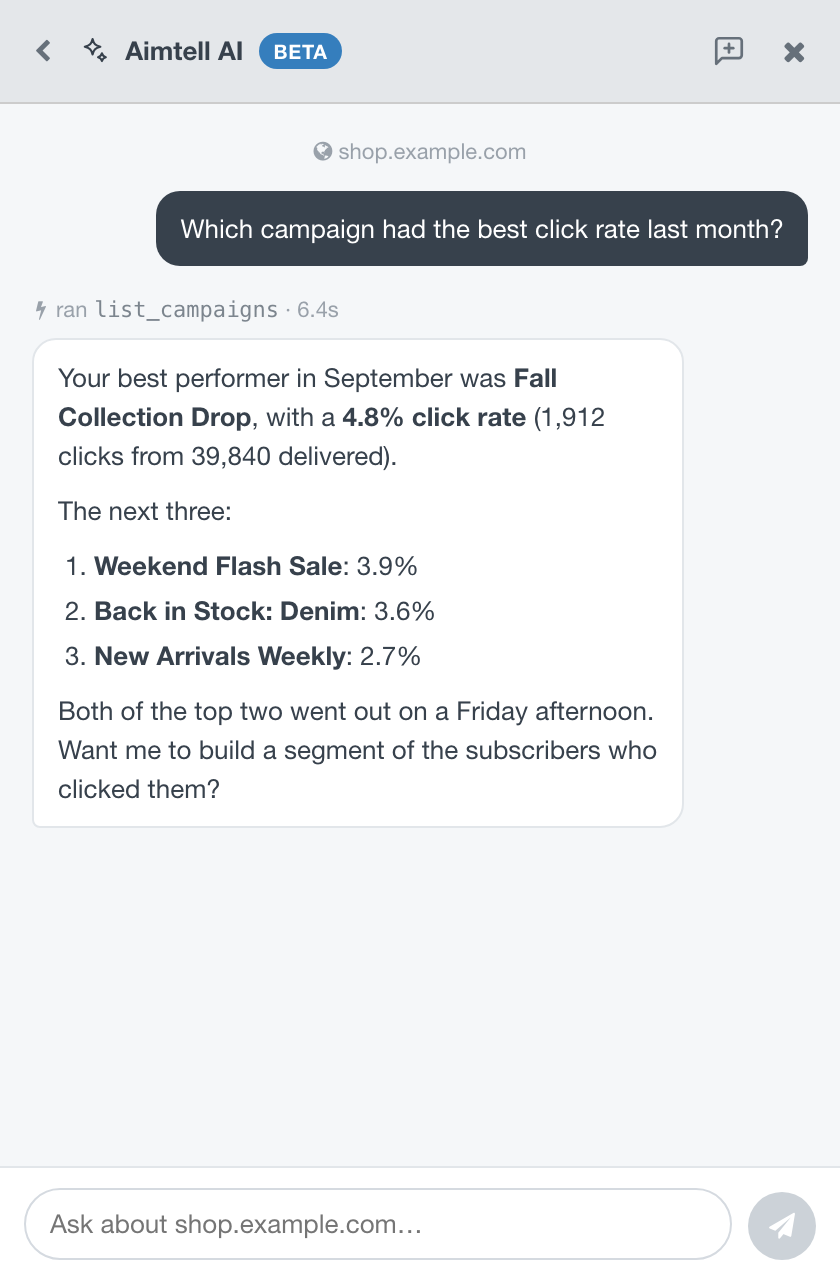
There is nothing to set up. The assistant uses the login you are already signed in with, so there is no API key to create and no second sign in. If you manage more than one site, the Answering about bar at the top of a new conversation lets you choose which site the conversation is about, without changing the site the rest of the dashboard is showing.
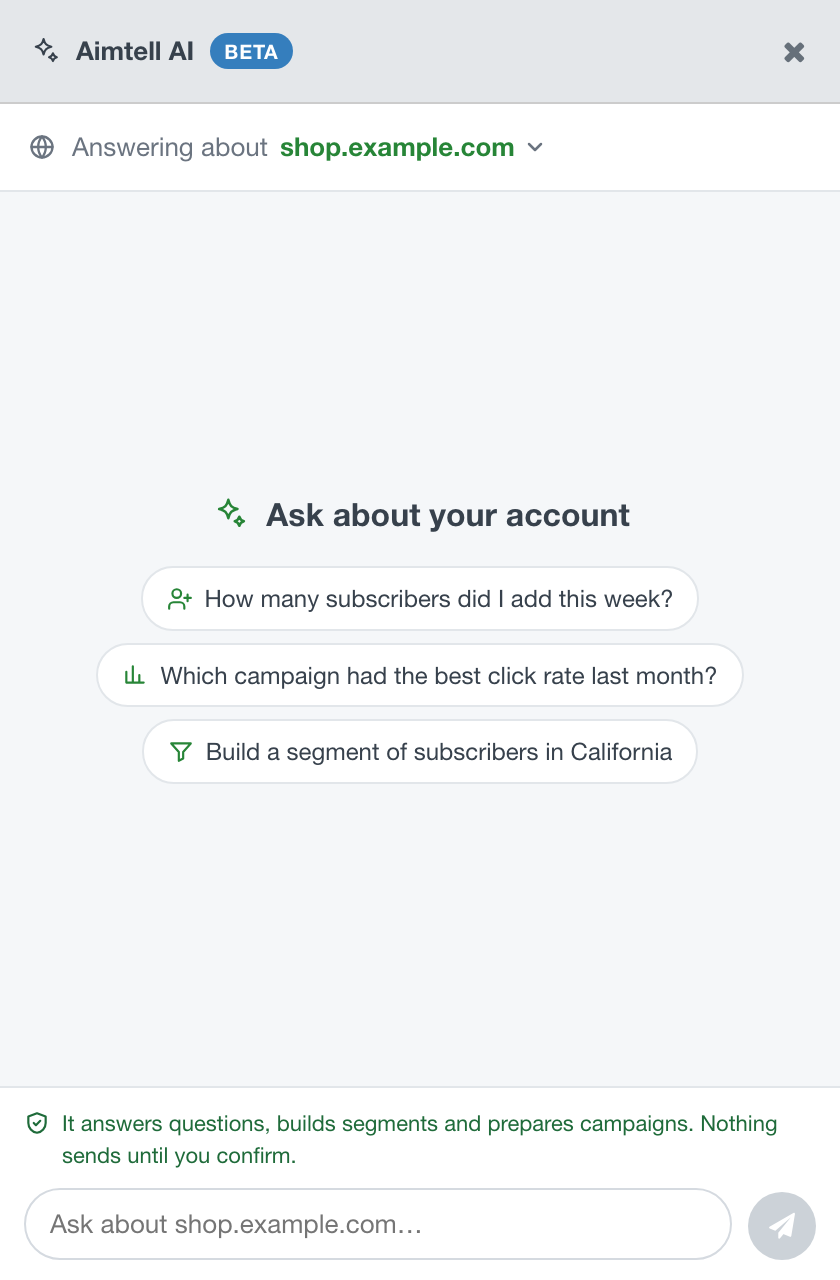
Your conversations are listed under Recent and stay with you as you move around the dashboard, so you can check a report, come back and pick up where you left off. The conversation list is kept in your browser tab, so closing the tab clears it and the next one starts fresh.
Build Segments and Draft Campaigns by Describing Them
Answers are the start. The assistant can also do the work that usually means filling in a form.
Ask it to build a segment of subscribers in California, or everyone who clicked a campaign in the last 14 days, and it creates the segment for you. Segments send nothing on their own and can be deleted from the dashboard like any other, so the assistant creates them straight away.
Everything that sends a push or changes something your subscribers will see works differently. The assistant can:
- Draft a manual, triggered or RSS campaign
- Edit a draft you have already saved
- Schedule a campaign
- Set your welcome notification
- Update a subscriber's custom attributes
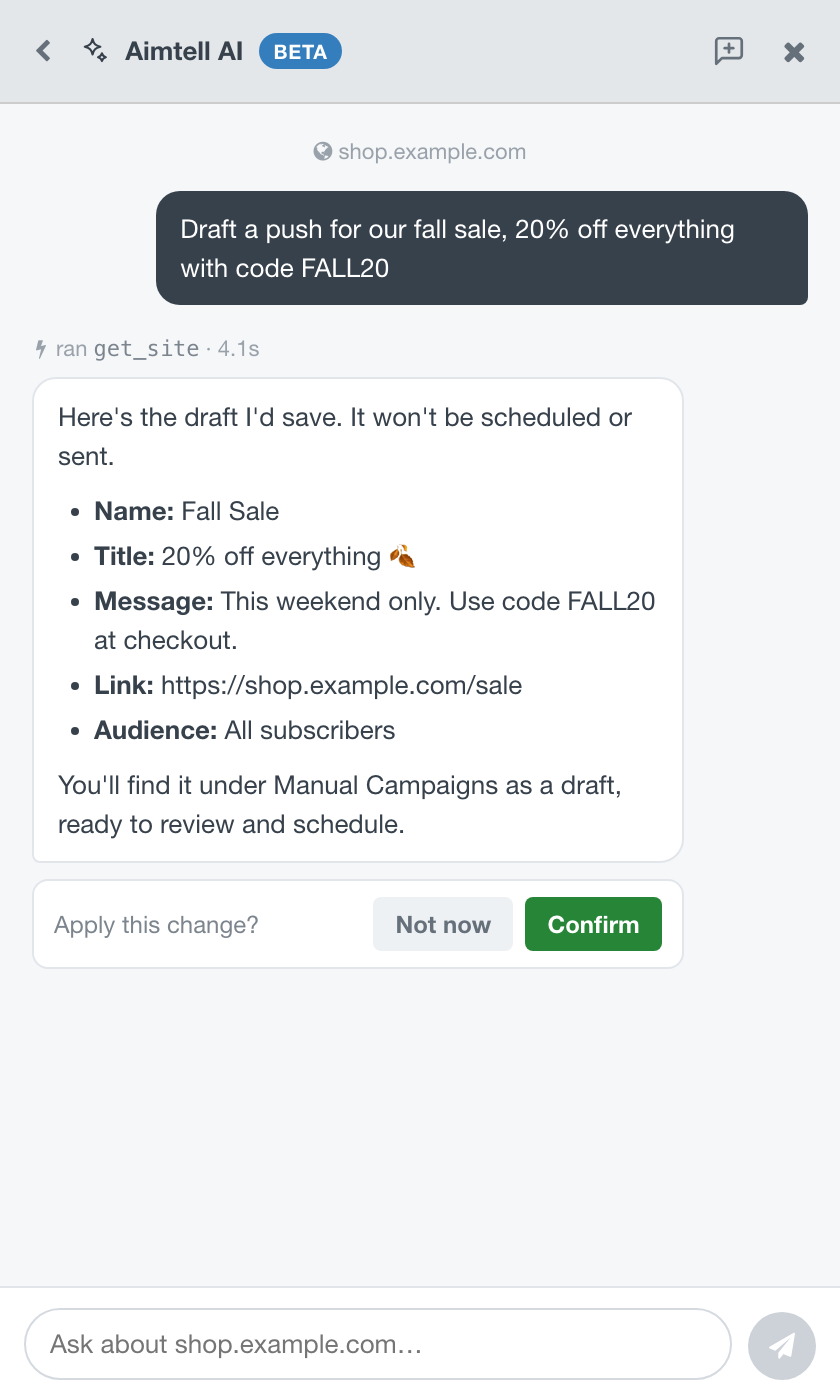
For any of these, the assistant first tells you exactly what it is about to do: the title and message, the link, the audience, and for an edit, each field it will change. Underneath the answer you get a Confirm button and a Not now button. Nothing happens until you press Confirm. Saved drafts land in your campaign Drafts list, ready to review and send yourself.
Why Nothing Sends Until You Say So
Handing an AI the keys to a channel that reaches thousands of people at once deserves care, so we built the safeguards into how the assistant works rather than relying on it to remember to ask.
Confirm is enforced, not just requested. On a normal question, the tools that create or change campaigns are not available to the assistant at all. They are only switched on for the one request you send by pressing Confirm. If the assistant ever forgets to offer the button, the result is that you have to ask again, never that something is created without you.
There is also no "send now". We removed the ability to send a push immediately, because an instant send to every subscriber cannot be recalled. The only way the assistant can send anything is by scheduling a campaign, and a scheduled campaign can be paused or cancelled from your dashboard right up until it goes out.
And it can only do what you can do. The assistant acts with your own login and your own permissions. It cannot see sites you cannot see or change settings you could not change yourself.
Bring Aimtell Into Claude, Cursor and Other AI Tools
The dashboard assistant is the quickest way to start, but plenty of teams already spend their day in an AI tool. The Aimtell MCP server brings your push account to them.
MCP, the Model Context Protocol, is an open standard that lets AI assistants connect to outside services. Once Aimtell is connected, you can ask Claude to pull last week's campaign results into a report, compare performance across all your sites, or draft a campaign while you are already working on the copy, all without leaving the conversation.
The server lives at:
https://mcp.aimtell.com/mcpYou will need an Aimtell API key, which you can create in your dashboard under Settings → API Key. Then connect the tool you use:
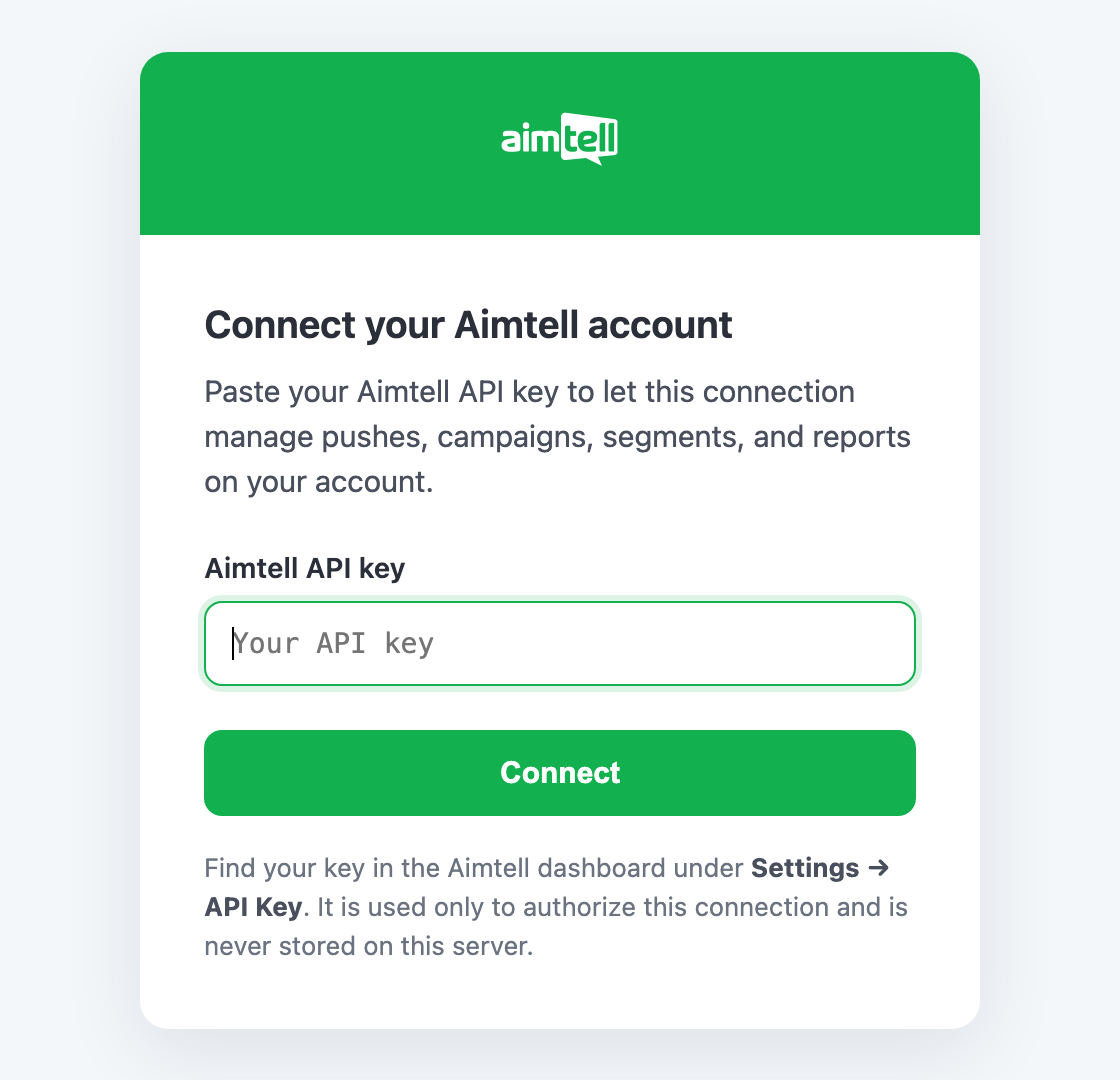
In Claude.ai or Claude Desktop, go to Settings → Connectors → Add custom connector and enter the URL above. Claude opens a page asking you to paste your Aimtell API key. Paste it and you are connected.
In Claude Code, run:
claude mcp add --transport http aimtell https://mcp.aimtell.com/mcp \
  --header "Authorization: Bearer YOUR_AIMTELL_API_KEY"
In Cursor or Windsurf, add this to your mcp.json:
{
  "mcpServers": {
    "aimtell": {
      "url": "https://mcp.aimtell.com/mcp",
      "headers": { "Authorization": "Bearer YOUR_AIMTELL_API_KEY" }
    }
  }
}
Any other client that supports remote MCP servers can connect the same way, with the URL and your key in an Authorization header.
Your API key is never stored on our MCP server. It travels with each request, is passed to the Aimtell API, and is discarded. Every request the AI makes is a normal API request on your account, so it counts toward your account's API rate limit in the same way.
What the MCP Server Can Do
| Area | What you can ask for |
|---|---|
| Sites and account | List your sites and their settings |
| Reporting | Analytics over any date range, per site or across all of them, results for each campaign, and delivery logs |
| Campaigns | Find campaigns, save manual, triggered and RSS drafts, edit drafts, schedule campaigns, and set the welcome notification |
| Segments and subscribers | Look up, count and create segments, browse subscribers, and set custom attributes |
The same caution applies here as in the dashboard. Every tool that creates or changes something works in two steps. The first call writes nothing. It returns a plain-language summary of exactly what would happen, including a clear warning if a campaign is about to go to every subscriber. Only a second call with the same details goes through, and changing any detail starts the preview again. Claude.ai and Claude Desktop can also ask for your approval before each tool runs, so you can watch every action as it happens.
A Few Things to Try First
If you are not sure where to start, these make good first questions, whether you are in the dashboard or in Claude:
- "Summarize how my push notifications performed last month, and call out anything unusual."
- "Which three campaigns had the highest click rate this quarter, and what did they have in common?"
- "Build a segment of subscribers who have not clicked anything in 60 days."
- "Draft a campaign for that segment announcing our fall sale, linking to our sale page."
- "Compare subscriber growth across all of my sites over the last 90 days."
Available Now in Open Beta
The AI Assistant and the MCP server are both in open beta. That means they are available to every Aimtell account today, with nothing to sign up for, and that they are still changing quickly. Expect new abilities to appear, answers to keep getting sharper, and the occasional question it cannot handle yet.
Your feedback during the beta decides what comes next. After a few questions the assistant will ask how it is doing, and that answer goes straight to the team building it.
If there is a question it cannot answer yet, or a task you wish it could take off your plate, tell us. That list is shaping what we build next. And if you are not on Aimtell yet, start a free trial and ask it about your own subscribers on day one.